
Removing an APK application from an Android phone is usually easy. However many users think deleting the downloaded APK file automatically removes the installed app. This is not correct. The installation file and the application installed on your phone are two things.If you want to uninstall an APK app remove applications or free up storage space this guide explains the complete process, in simple steps.
In this article you will learn how to uninstall APK apps remove installation files manage application data and solve common uninstall problems. Whether you installed an Android game or another application manually these methods can help you manage your device efficiently.
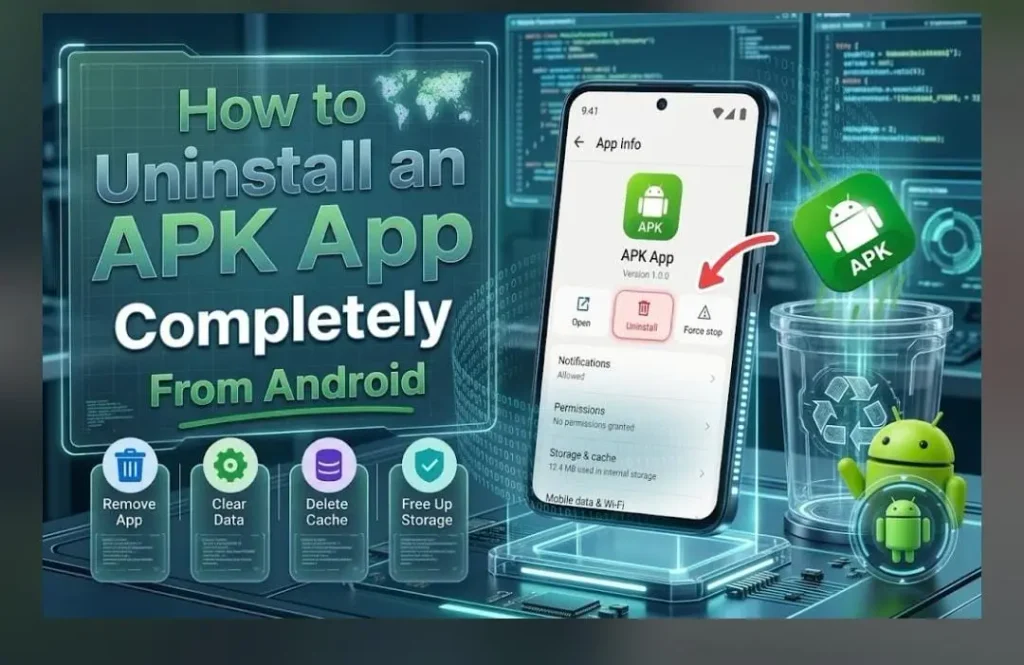
How to Uninstall APK Apps
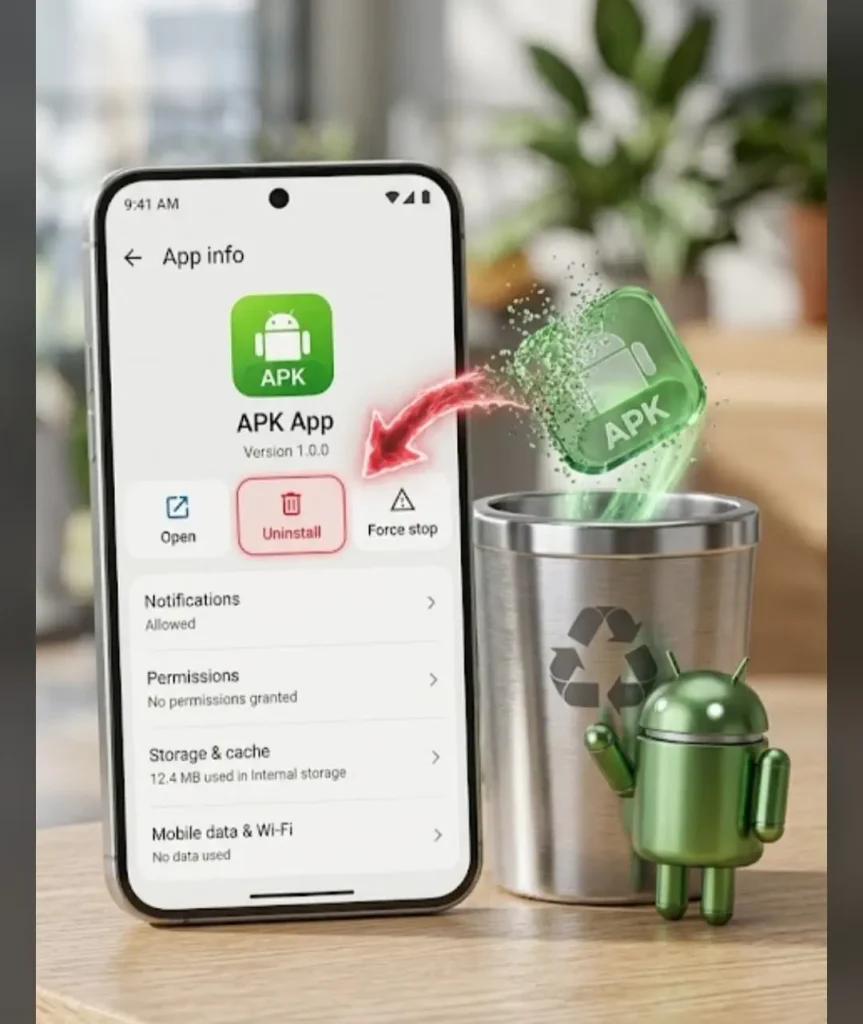
Understanding APK Applications on Android
APK means Android Package Kit. APK is the file type that Android uses to share apps.
When you download an APK and install it Android creates an app, on your phone. The original APK file can stay in your Downloads folder. That file is not the app.
For example if you install a game from an APK you can delete the APK file later. The game will stay on your phone.
So if you want to get rid of an app you must uninstall the app from Android settings not just delete the APK file.
How to Uninstall an APK App From Android Settings
The easiest way to uninstall APK apps is through your Android phone’s Settings.
Step 1: Open Android Settings
Open the Settings app on your Android phone.
The exact menu names can vary depending on the Android version and device manufacturer.
Step 2: Open the Apps Section
Look for an option such as:
* Apps
* Apps & notifications
* App management
* Manage apps
* Applications
Tap the option to view applications installed on your phone.
Step 3: Find the APK App
Scroll through the installed applications. Use the search option if your phone provides one.
Find the application you want to remove.
Step 4: Open the App Information Page
Tap the application name to open its information page.
You may see options such, as storage, permissions, notifications, mobile data and battery usage.
Step 5: Tap Uninstall
Select Uninstall. Confirm the action when Android asks you to do so.
Android will remove the application from the device.
Uninstall APK Apps Directly From the Home Screen
Some Android phones allow users to uninstall applications without opening Settings.
Follow these simple instructions:
- Locate the application icon on your home screen or app drawer.
- Press and hold the icon for a few seconds.
- Check whether an Uninstall or App Info option appears.
- Select Uninstall if available.
- Confirm the removal.
The available options depend on your Android version and device manufacturer.
If you only see Remove from Home screen, that does not uninstall the application. It only removes the shortcut or icon from the home screen.
If you are removing an installed game such as 999Y0 GAME APK,(https://apkgemini.pk/999yo-game/) you can also review its APK information before reinstalling it later. you can also review its APK information before reinstalling it later.
Does Deleting an APK File Remove the Installed App?
- No, deleting an APK file does not uninstall the installed application.
- An APK file is only an installation package used to install an Android app.
- After installation, the application is stored separately on your phone.
- For example, deleting the 999YO Game APK from Downloads will not remove the installed game.
- To uninstall the app, go to Settings → Apps → Select the App → Uninstall.
- Deleting the APK file only removes the downloaded installation package and may free up some storage.
How to Remove APK Apps and Their Saved Data
When you uninstall an application, Android generally removes its associated private app data. However, some files or downloaded content may remain in shared storage.
Before removing an application, check whether you need any important information.
Examples include:
- Saved game progress
- Account information
- Offline content
- Downloaded files
- Application settings
- Important documents
If an application provides account synchronization or backup options, use them before uninstalling when necessary.
Remember that reinstalling the same application does not always restore previously saved information.
How to Delete APK Files From Downloads
After uninstalling an application, you may still have its original APK file stored on your device.
You can remove it manually by following these steps:
- Open File Manager or Files.
- Navigate to the Downloads folder.
- Find the APK installation file.
- Select the file you no longer need.
- Tap Delete.
- Confirm your action.
This can help recover storage space, especially if you regularly download large APK files.
If you explore Android games through apkgemini.pk, you can also check our APK installation guides before downloading or installing applications.
Why Is the Uninstall Option Missing?
Sometimes Android does not display a normal Uninstall button. This can happen for several reasons.
System Applications
Some applications come pre-installed with Android or your mobile manufacturer.
These apps may not support complete removal. Instead, your device might provide a Disable option.
Device Administrator Permissions
Certain applications use special device-management permissions.
If an application has administrator access, you may need to remove that access before uninstalling it.
Review your phone’s security settings and disable the relevant administrator permission only if you understand its purpose.
Restricted Applications
Some phones are managed by organizations, schools, or parental-control systems.
These restrictions can prevent users from uninstalling specific applications.
If your device is managed by another organization, contact its administrator for assistance.
How to Uninstall an APK That Is Not Working Properly
If an APK application crashes, freezes, or displays repeated errors, removing it may help resolve the issue.
Before uninstalling, consider the following steps:
- Close the application completely.
- Restart your Android phone.
- Check whether the application has an available update.
- Back up important information.
- Uninstall the application if the problem continues.
- Restart your phone after removal if necessary.
If you decide to install it again, make sure the APK is compatible with your Android version and comes from a trustworthy source.
For more Android application information, you can explore other guides available on apkgemini.pk.
Should You Clear Cache Before Uninstalling?
Clearing cache is not necessary for every uninstall.
However, it may help when an application is experiencing temporary problems.
You can generally access cache settings through:
Settings → Apps → Select Application → Storage
Depending on your device, you may see Clear Cache or Clear Storage options.
Be careful with Clear Storage because it can remove application settings, saved information, and locally stored data.
If your only goal is to remove the application, using Uninstall directly is usually sufficient.
What Happens to Permissions After Removing an APK?
When an application is uninstalled, its installed permissions are generally removed along with the application.
This means the removed application should no longer access your camera, microphone, location, or other resources through its previous installation.
If you install the application again, Android may request permissions again.
Always review permission requests carefully. Only allow access that is necessary for the application’s functionality.
Can You Install the Same APK Again?
Yes. You can reinstall an APK after uninstalling it, provided the file is compatible with your Android device.
Before reinstalling, check these important points:
- Android version compatibility
- Application version
- Available storage
- APK file integrity
- Required permissions
- Download source
If an application previously caused problems, installing the same version again may not solve them.
For additional Android gaming information, visit apkgemini.pk and explore our APK guides.
How to Free More Storage After Uninstalling APK Apps
Uninstalling applications can recover storage space, but unnecessary files may remain on your device.
After removing an app, review the following locations:
- Downloads folder
- Old APK installation files
- Unused applications
- Large videos and images
- Offline media
- Unnecessary downloaded content
You can also use your phone’s built-in storage management tools to identify files that occupy significant space.
Avoid deleting unfamiliar Android system files manually because removing important files may affect device functionality.
Is Uninstalling an APK App Safe?
- Yes, uninstalling a normal Android application through phone settings is generally safe.
- It helps remove unwanted apps and free up device storage.
- Uninstalling an app may delete its saved data and settings.
- Back up important files or game progress before removing the application.
- Make sure you remember your account login details if you plan to reinstall it.
- Avoid using unknown third-party uninstall tools.
- After uninstalling, check your Downloads folder for leftover APK files.
- Always keep your passwords, PINs, and OTPs private.
Frequently Asked Questions
How can I uninstall an APK application completely?
Open Settings, navigate to Apps or App Management, select the application, and tap Uninstall. Confirm the action to remove the installed app.
Does deleting an APK file uninstall the application?
No. Deleting the installation file from Downloads does not remove the installed application. You must uninstall it separately.
Can I reinstall an APK after removing it?
Yes. You can reinstall a compatible APK if you have a trustworthy installation file and your device supports the application.
Will uninstalling an APK delete saved data?
Uninstalling an application generally removes its private app data. Some files stored in shared storage may remain. Back up important information before uninstalling.
Why does my Android phone not show Uninstall?
The application may be a system app, have device administrator permissions, or be restricted by your phone’s management settings.
Should I delete the APK file after uninstalling?
If you no longer need the installation file, you can delete it from your Downloads folder to recover additional storage.
Final Thoughts
Uninstalling APK applications is a way to manage Android storage and remove apps you no longer use. The important thing is to understand that an installed application and its downloaded APK file are separate.For Android users the easiest method is to open Settings select the application and tap Uninstall. Afterward you can check Downloads, for APK files and review your device storage.Before removing an application make sure you have saved any data. If you plan to install it later check its compatibility, permissions and download source.
For more Android APK guides, installation tutorials, gaming information, and helpful app tips, visit apkgemini.pk.